The NT Testing TCP Tool is a handy little tool for testing the throughput between two servers – and it’s free! It’s available to download here: http://www.microsoft.com/whdc/device/network/TCP_tool.mspx
First, you need to install the MSI on both ends – for the sake of this, say SERVER1 and SERVER2. Once you’ve installed it on the server, navigate to \Program Files\Microsoft Corporation\NT Testing TCP Tool, you should see a few copies of the tool for different architectures. Locate the correct .exe for you architecture and rename it to ntttcps.exe. Copy this and rename it to ntttcpr.exe – these form the sender and receiver parts of the tool.
SERVER1 is going to be my sender, and SERVER2 the receiver. On SERVER2, run a command prompt and navigate to the NT Testing TCP Tool folder. A typical listener is kicked of with this command:
ntttcpr –m 1,0,10.1.1.2 –a 6 –fr
Broken down, this command does the following:
-m [Sets a mapping] 1 [with 1 thread], 0 [to CPU0], 10.1.1.2 [listening on IP 10.1.1.2] –a 6 [expect asynchronous data, use 6 overlapped buffers] –fr [always use full receive buffers]
The implicit options are 64KB buffer size, 20,000 buffers on port 5001. This is a 1GB test transfer, so it could take a while over a slow connection. If you want to set the buffer, use –l [size]. If you want to set the number of buffers, use –n [number]. To set the port to use, use –p [port].
Now that the listener is waiting for a connection we can kick off the test from the sender – SERVER1.
ntttcps –m 1,0,10.1.1.2 –a 2
Similar to the previous command on SERVER2, this does the following:
-m [sets a mapping] 1 [with 1 thread], 0 [to CPU0], 10.1.1.2 [sending to IP 10.1.1.2] –a 2 [send asynchronous data, use 2 overlapped buffers]
The implicit options are the same as before. A useful option is to use the –f [filename.txt] to send the output to a text file.
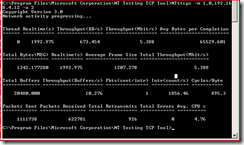
Here’s the results of a test I conducted earlier: