Problem#
Fairly recently I came across this error message on one of my hosts “esx.problem.visorfs.ramdisk.full”
Fallout#
While trying to address the issue I had the following problems when the ramdisk did indeed “fill up”
- PSOD (worst case happened only once in my experience)
- VM’s struggling to vMotion from the affected host when putting into maintenance mode.
Temporary workaround#
A reboot of the host would clear the problem (clear out the ramdisk) for a short while but the problem will return if not addressed properly.
Environment#
- Clustered ESXi hosts (version 5.1)
- vCenter 5.1
Steps taken#
First of all I had to see just how bad things were so I connected to the affected host via SSH ( you may need to start the SSH service on the host as by default it is usually stopped)
Using the following command I could determine what used state the ramdisk was in.
vdf -h
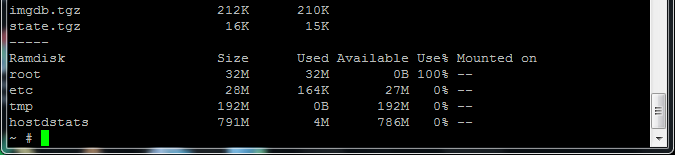
(using an example output)
It was clear the root was full so now to find out what was filling it up so I searched KB articles for answers below were more the more helpful ones.
Unlike many of the other articles I had read which all seemed to point to /var/log being the cause the culprit in this instance was the /scratch disk
After doing some quick reading it was clear I could set a separate persistent location for the /scratch disk. So I followed the VMware KB article on this process and rebooted the host to apply the changes.
The gotcha#
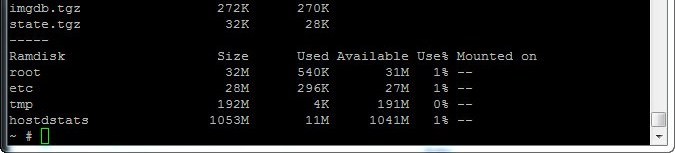
Even though I had followed the article to the letter and rebooted the host the changes did not apply on this host as when I double checked the ramdisk and this was the output as you can see the used space was already growing and when I put the console window side by side with the other hosts it was growing rapidly whereas the other hosts were quite static in used space.
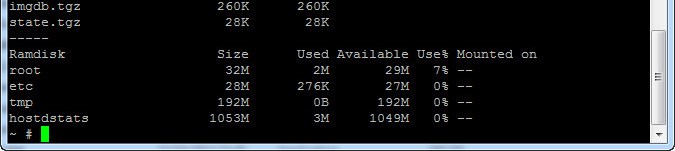
It was not until I rebooted the host again did the changes I made apply, I will point out that this was the only time this little issue occurred the other hosts only required one reboot after changing the /scratch location.
Finally#
After the second reboot I could see the host was as it should be