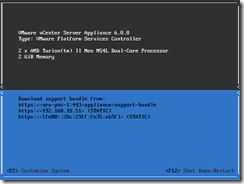
I’m not sure how supported this is, but this process can recover a vSphere 6 vCenter Server Appliance or Platform Services Controller when you’ve lost the root password.
Download the OpenSUSE Rescue CD - http://download.opensuse.org/distribution/13.2/iso/
Mount the CD to the PSC Appliance
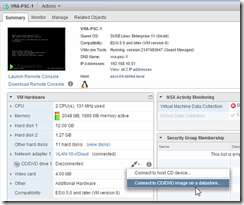
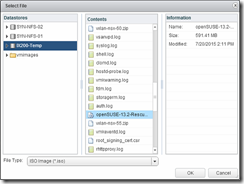
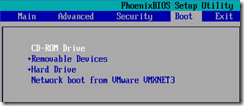
Reboot the appliance and enter the BIOS setup using F2, configure the CD-ROM as first-boot device. Save and exit to reboot into the SUSE Live-CD.
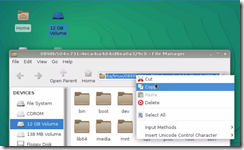
Once the Live-CD has booted to a desktop, you’ll see a 12GB volume at the top – that’s your PSC appliance root. Double click to open the disk and then copy the path, we’ll need it later.
Next open a shell console and change the root password (of the live CD root user) to something memorable
sudo passwd root
Next, open the /etc/shadow file and copy the root user’s password:
sudo cat /etc/shadow | grep “root”

Copy this line into the shadow file on the 12GB partition we looked at earlier and replace the existing “root” line.
sudo vi /run/media/linux/<GUID>/etc/shadow
Paste the updated root password into the file, replacing the old. use :wq! to force the file to write and quit. Reboot, remove the CD and boot the the appliance.
Log in to the console interface and reset the password correctly.