

This series was originally going to be a more polished endeavour, but unfortunately time got in the way. A prod from James Kilby (@jameskilbynet) has convinced me to publish as is, as a series of lab notes. Maybe one day I’ll loop back and finish them…
Prerequisites#
PostgreSQL server deployed and configured
Two vRO 7.4 appliances deployed
Before powering them on, add an additional network card on the vcd-sql network
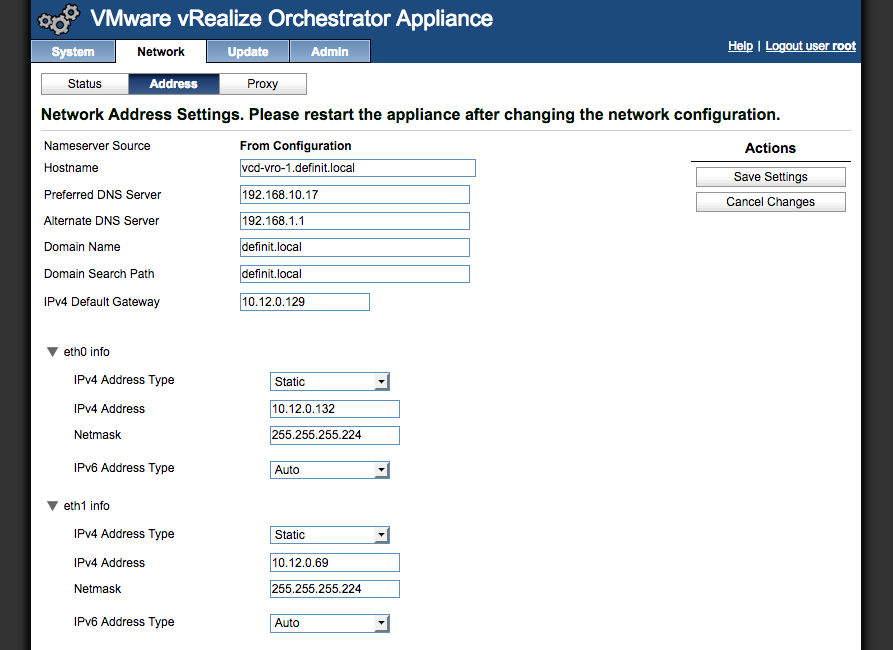
Power on the VM and wait until it boots, then log onto the VAMI interface (https://vcd-vro-[1-2]:5480) and configure the eth1 interface with an IP address on the vcd-sql subnet
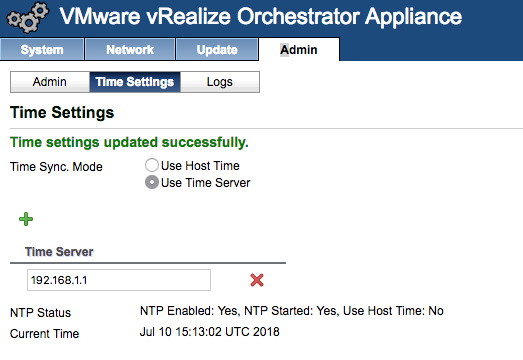
Configure the NTP server
Configuring the first vRO node#
Log onto the Control Centre for the first node https://vcd-vro-1.definit.local:8283/vco-controlcenter
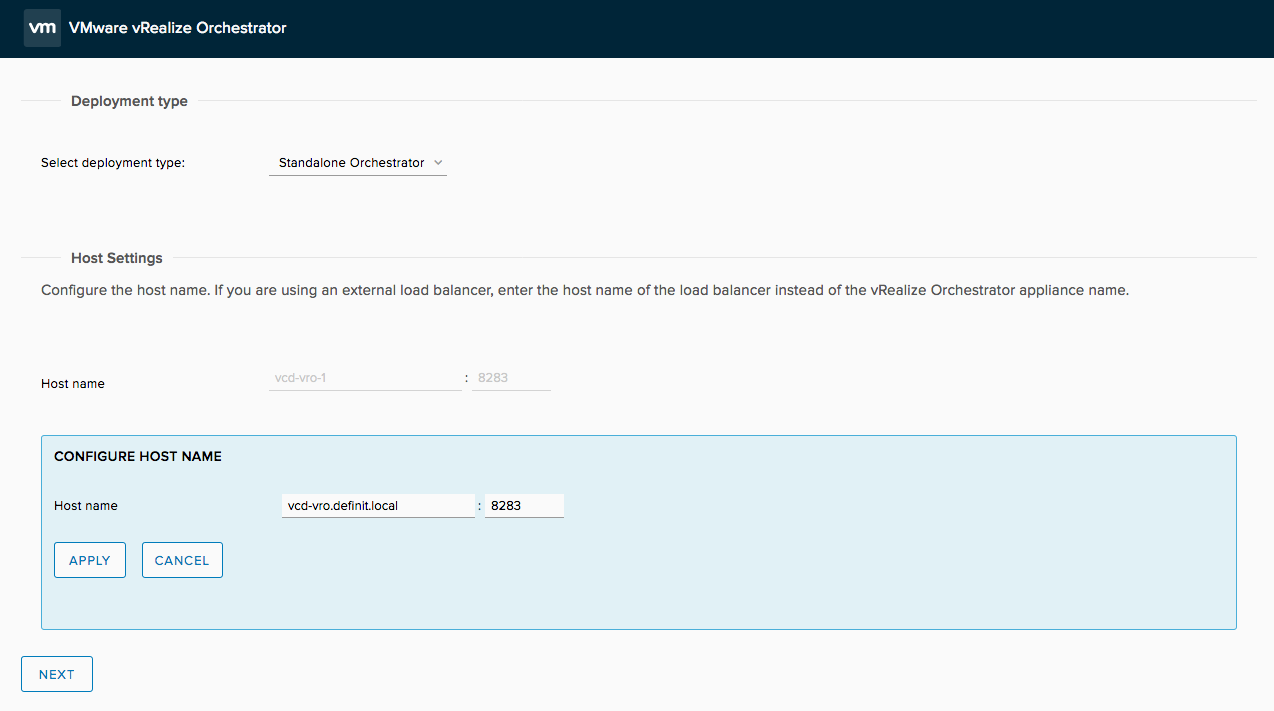
Select the deployment type as standalone, and configure the load balancer name.
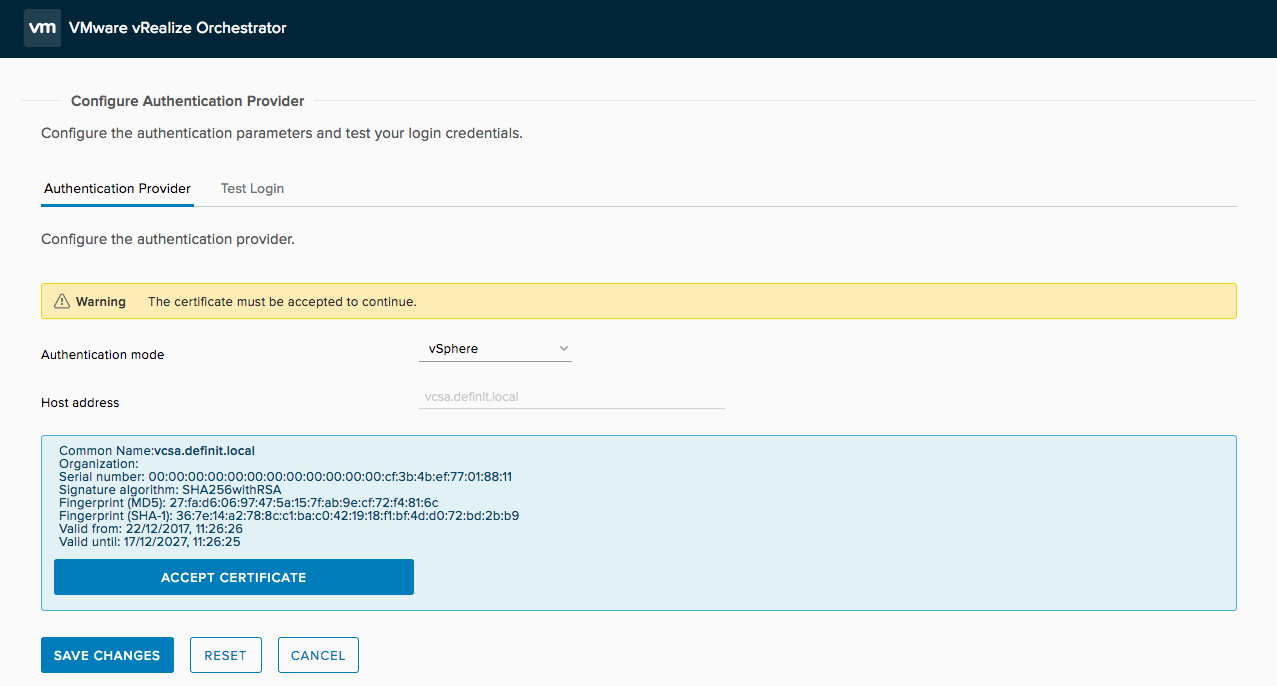
Select the vSphere authentication provider, and accept the certificate.
Enter credentials to register with vSphere
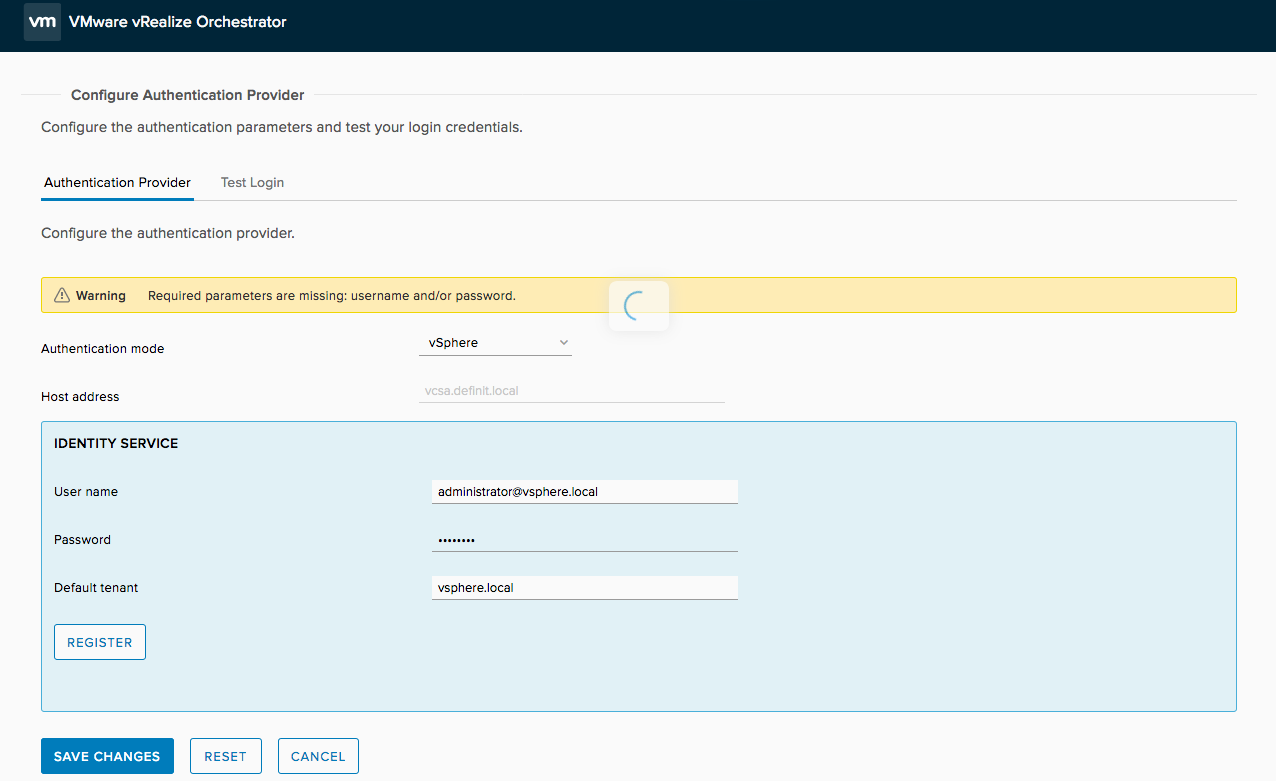
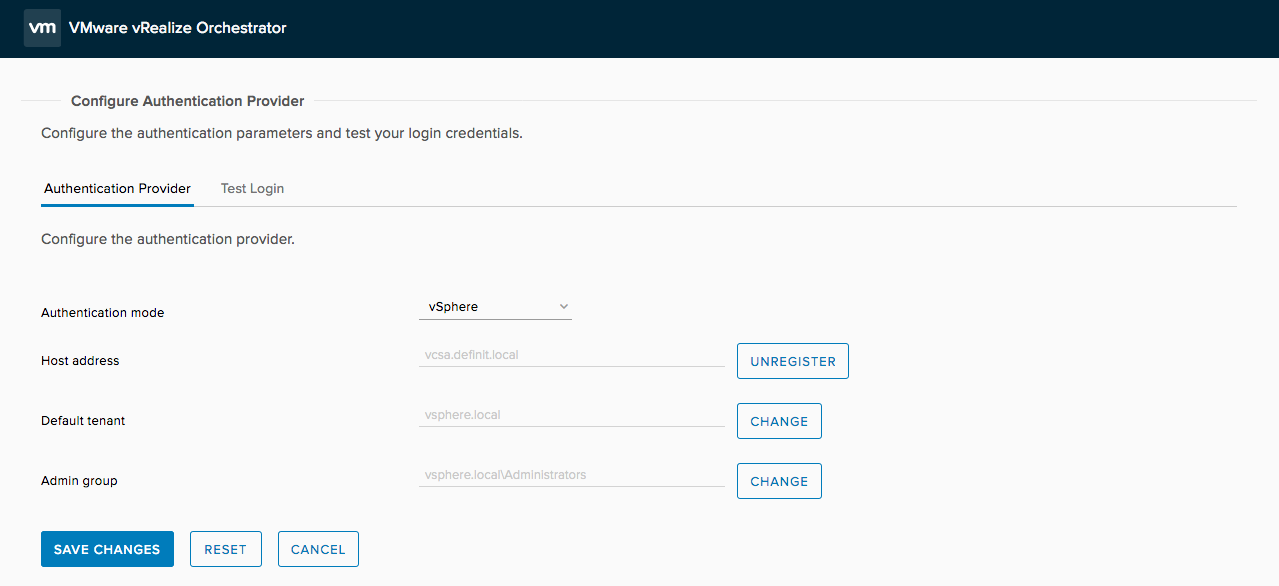
Select the an Administrators group to manage vRO
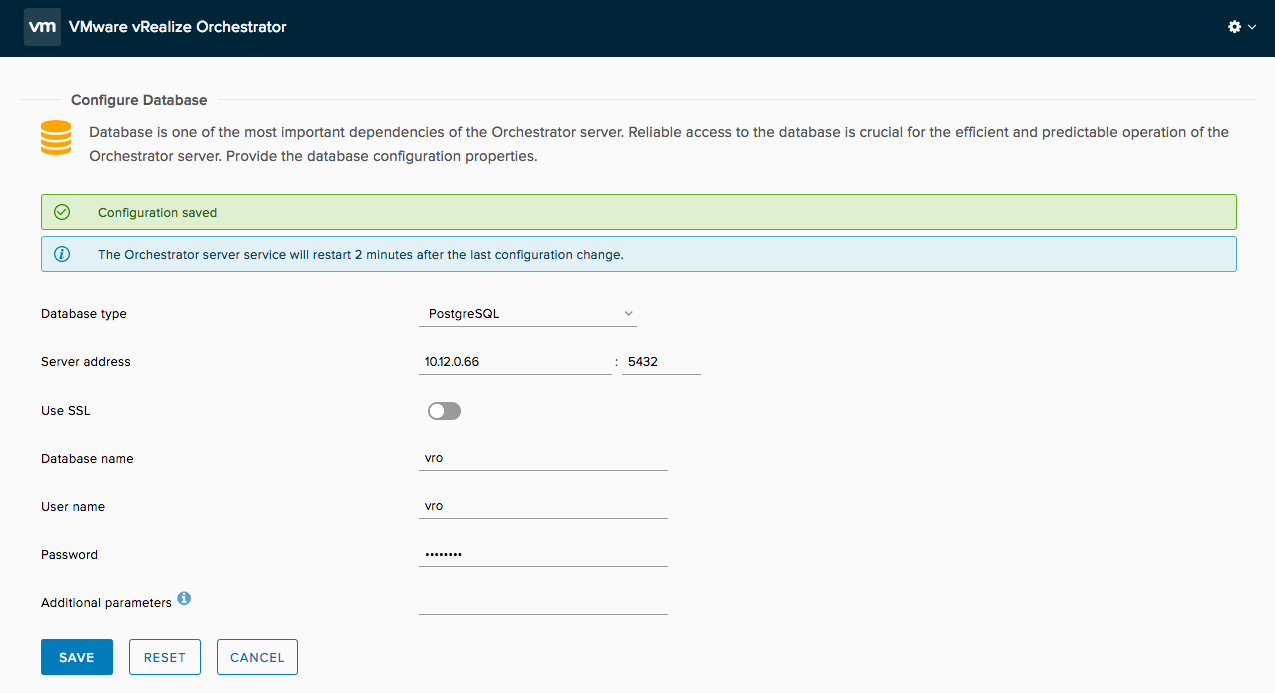
Configure the remote database connection
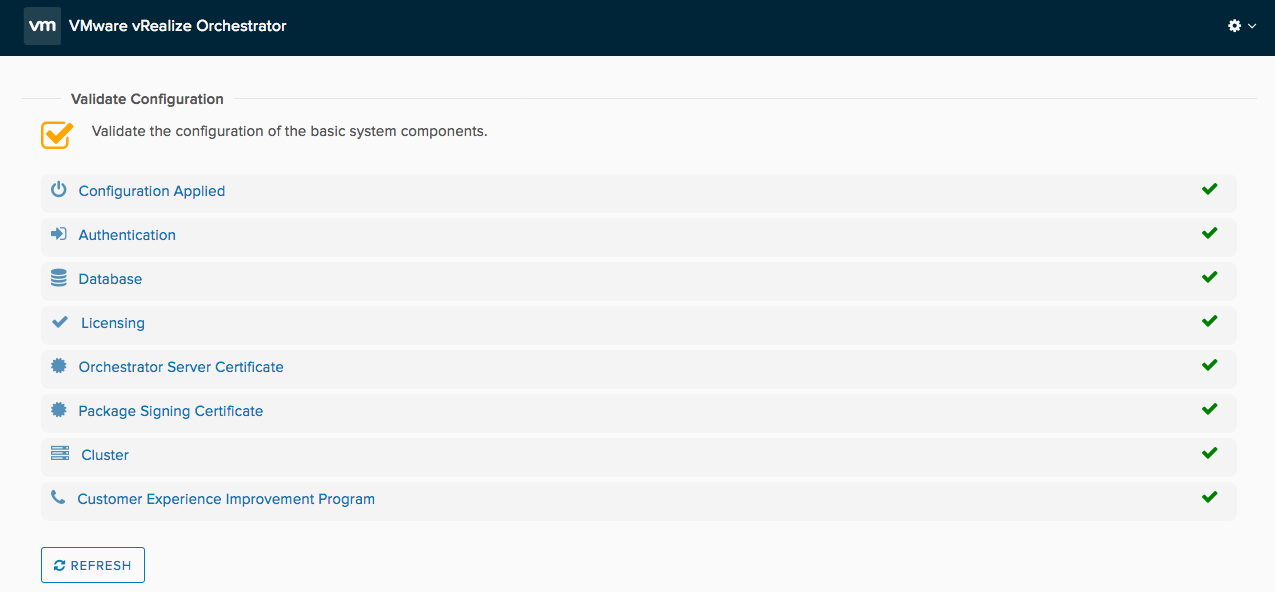
After a couple of minutes, the vRO server will have restarted and I can progress to the second node - check this has happened by going to the Validate Configuration page and waiting for all the green ticks!
Configuring the second vRO node#
Select Clustered Orchestrator from the deployment page, and enter the details of the first vRO node
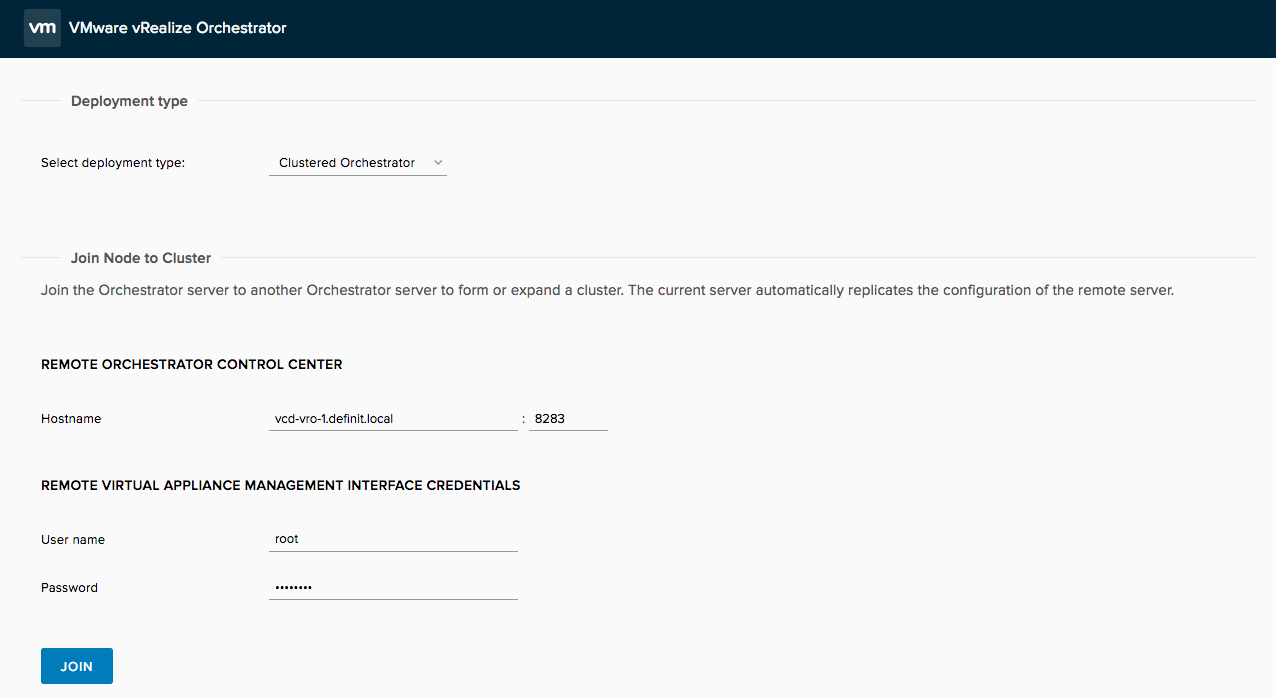
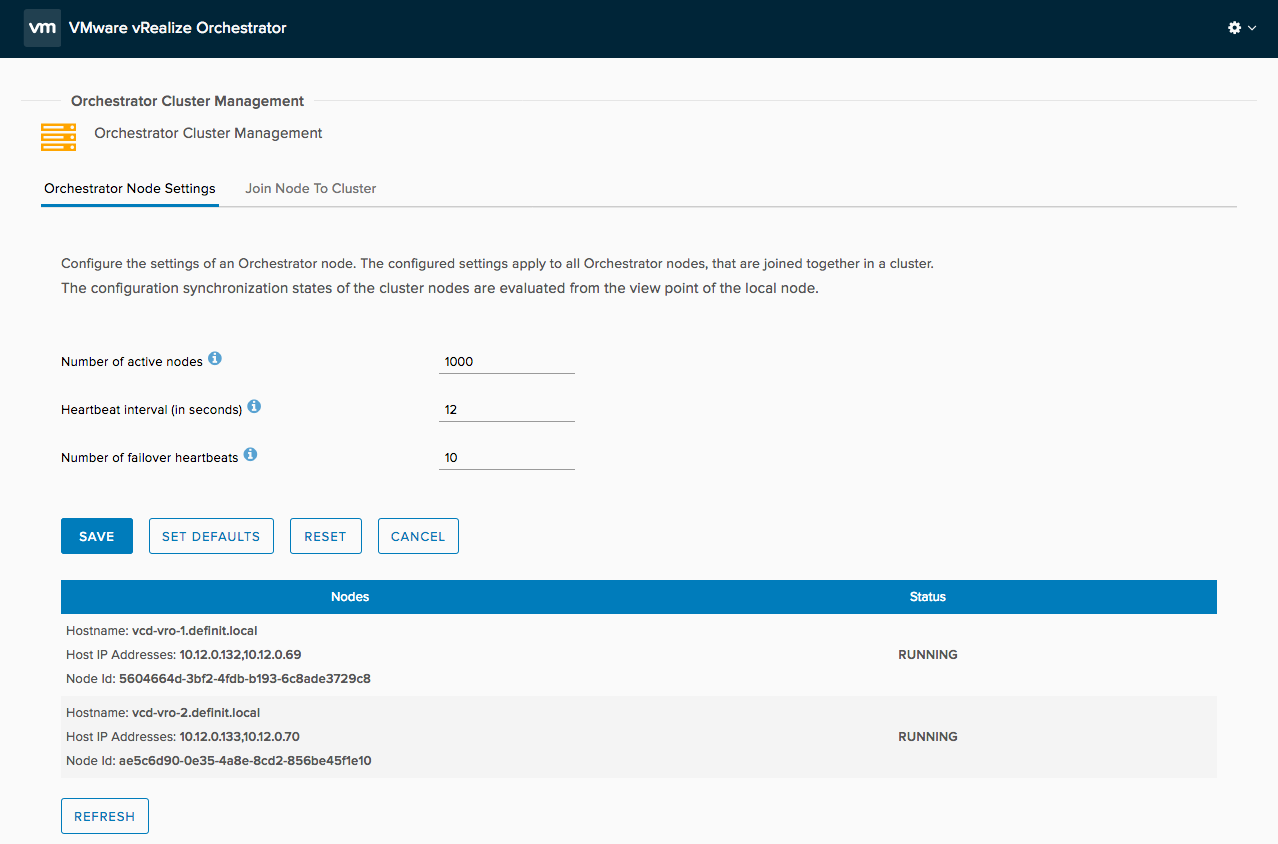
Wait for the second node to restart it’s services (~2 minutes again) to apply the configuration. Once the configuration has applied, you should see both nodes in the Orchestrator Cluster Management page
Load Balancing the vRealize Orchestrator Cluster#
I will be configuring an NSX-T load balancer, on the Tier-1 router that all the vCloud Director components are connected to. However the basic configuration should apply across most load balancer vendors.
Virtual Servers#
vcd-vro-8281#
- IP address: 10.12.0.5 (vcd-vro.definit.local)
- Port: Layer 7 HTTPS 8281
- SSL Offload
vcd-vro-8283#
- IP address: 10.12.0.5 (vcd-vro.definit.local)
- Port: Layer 7 HTTPS 8283
- SSL Offload
Server Pool#
- Members: 10.12.0.132, 10.12.0.133
- Algorithm: Round Robin
Health Check#
vro-https-8281#
- URL: /vco/api/healthstatus
- Port: 8281
- Response: HTTP 200
vro-https-8283#
- URL: /vco-controlcenter/docs/
- Port: 8283
- Response: HTTP 200
Next Steps#
Later, once the vCloud Director installation is completed, vRealize Orchestrator will be configured for “XaaS" extensibility, as well as being hooked in as a subscriber to the vCloud notifications on the RabbitMQ cluster.