


In my previous article, I talked about the theory of why you would use Skills, MCP Servers, what Tools are and how they relate to Context. In this article I am jumping right in to how to configure VSCode and Copilot to write effective Terraform code for you.
HashiCorp offers both an MCP server and Agent Skills for Terraform (as well as an MCP server for Vault and some Skills for Packer, but I’ll keep the context Terraform for now!) Using both in conjunction is a context-efficient way to work; ensuring you have real-time access to the latest Terraform Providers and their documentation, with task-specific expertise and knowledge, without overloading your context.
The Terraform MCP server provides your Agent with Tools to lookup real-time information about Terraform Providers, Modules, and Sentinel Policies. It also provides Tools to query HCP Terraform (and/or Terraform Enterprise) organizations and private registries, and to perform CRUD operations on workspaces, variables, tags, and variable sets.
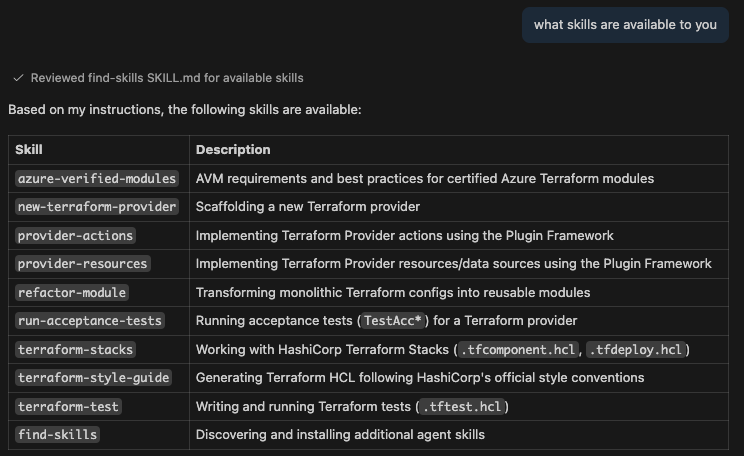
The Terraform Agent Skills installs various Skills to provide specific knowledge for specific tasks - for example, new-terraform-provider to assist in authoring a Terraform provider, or terraform-style-guide to ensure generated code matches the recommendations in the Terraform Style Guide docs, while refactor-module provides guidance on transforming monolithic Terraform configurations into reusable modules.
If any of these terms are confusing, please have a read of my previous article, Understanding instructions, context, skills and MCP servers for code generation where I tried to provide simple explanations for each of them.
Install the Terraform Skills using NPM#
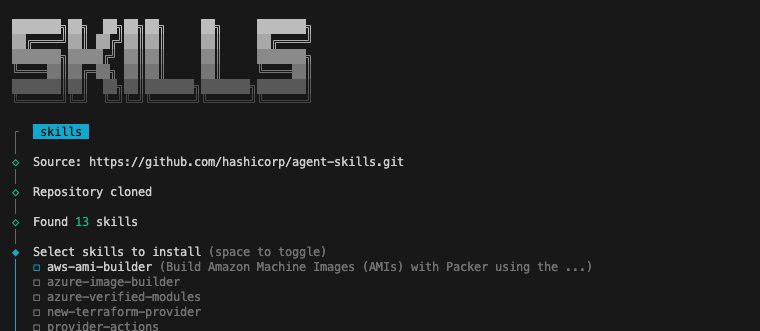
Full instructions on how to install the agent skills are available on the hashicorp/agent-skills GitHub repository. The installation for VSCode uses the npx command line:
- Run
npx skills add hashicorp/agent-skills - Select the Skills you want to use in this project (I’m going to install all the Terraform Skills)
- Select where you want to install the Skills - for VSCode the “Universal” option is good
- Select the installation scope - I just want to install for my current project
- Finally, select whether you want to install a new copy, or a symlink to the package version (if you’re only working locally you might want the symlink, but if you are collaborating with others or want to modify the skills this might not be the best option)
- Proceed with the installation - a new
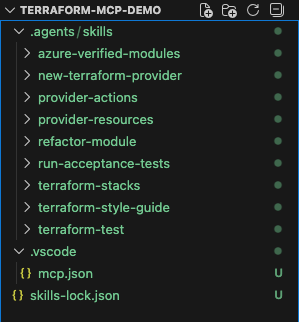
.agentsfolder will be created
Now if I prompt Copilot with “what skills are available to you” it will list the skills that I installed.
Configure the Terraform MCP server#
MCP servers in VSCode are configured in either your user profile or in your specific workspace. In order to manage what’s in the AI agent’s context for specific projects, I prefer to configure them on a per-workspace basis.
To configure a new workspace-scoped MCP server, create a new JSON config file in your workspace - .vscode/mcp.json (feel free to remove the comments!)
{
  "servers": {
    "terraform": {          // Name the server
      "type": "stdio",      // Use `stdio` to communicate with the server
      "command": "docker",  // Execute the docker command
      "args": [
        "run",              // Run a container
        "-i",               // Run it interactively
        "--rm",             // Remove it when stopped
        "hashicorp/terraform-mcp-server:latest"  // Use this image, for production use a specific version
      ]
    }
  }
}
Using other commands
You can substitute the docker command with any other container runtime you might be using e.g. podman or Apple’s container. You can also compile the MCP server from source code and substitute the docker command with the path to the executable.
Once you’ve created and saved the configuration file you can access a contextual menu in VSCode. From there you can start, stop, or restart the server, view the output or view the tools and resources provided by the MCP server.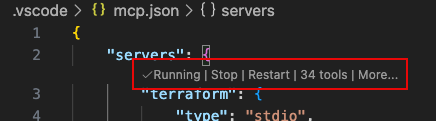
This configuration will give you access to live information from the public Terraform registry (providers, modules, policies). If you’re working with HCP Terraform, or Terraform Enterprise you can configure an API token by passing environment variables to the container - this enables further tools to work with Private Registries and to manage workspaces, variables, tags.
Authenticating with HCP Terraform or Terraform Enterprise
You can configure VSCode to prompt you for your API token when you first start the MCP server. VSCode will treat it as a password and store it securely.
{
 "mcp": {
   "servers": {
     "terraform": {
       "command": "docker",
       "args": [
         "run",
         "-i",
         "--rm",
         "-e", "TFE_TOKEN=${input:tfe_token}",
         "-e", "TFE_ADDRESS=${input:tfe_address}",
         "hashicorp/terraform-mcp-server:0.4.0"
       ]
     }
   },
   "inputs": [
     {
       "type": "promptString",
       "id": "tfe_token",
       "description": "Terraform API Token",
       "password": true
     },
     {
       "type": "promptString",
       "id": "tfe_address",
       "description": "Terraform Address",
       "password": false
     }
   ]
 }
}
The MCP server’s access to Private Registries is actually a hugely valuable ability, if you’re using them. No matter how good the AI model you use, it will not have access to your private modules or providers - configuring access will allow your model to discover and use them.
Generate some Terraform code#
At this point, my VSCode workspace has a .agents folder, full of Skills, and a .vscode folder that contains my MCP server configuration. There is also a skills-lock.json file that npx is using to keep track of my installed skills.
I wanted to quickly generate some Terraform code that made full use of some of these features, so I wrote a prompt that would:
- deploy a two-tier application to AWS
- scale with load
- create a module for reusability
- be optimized for security, performance and resilience
With that in mind, this is the prompt I came up with:
Write some reusable Terraform code to deploy a two tier app on AWS, using the latest provider and Ubuntu template. The web tier should be load balanced and auto-scale from one to seven nodes based on performance. The database tier should use native services. Everything should be as performant, secure and resilient as possible following as many best practices as is practical.
When I run the prompt you can see that the agent used the MCP server and skills automatically to:
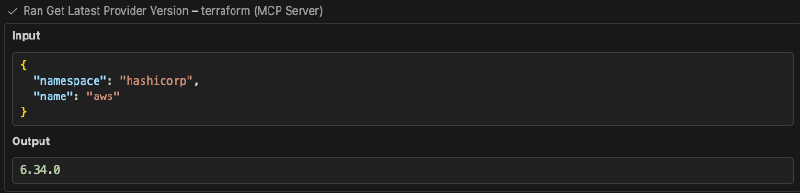
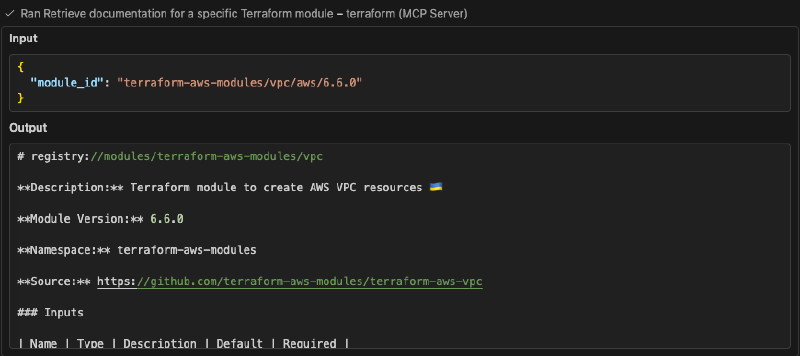


From this single prompt I have a new, reusable, module that has been written using the latest terraform providers, modules and style guide, and has baked in best practices from the AWS provider for performance, security and resilience.
Making use of tools#
By adding an API token to my MCP server configuration, I can enable tools to manage HCP Terraform or Terraform Enterprise resources, including workspaces, runs, variables and private modules.
This means that I can use natural language prompts to manage configuration in my environment, so following on from the code that was generated previously, I can prompt to:
Create a new workspace called my-two-tier-app and create all the variables required to deploy my application in a new variable set.
This creates a new workspace within my HCP Terraform organization, and then creates a variable set within the workspace, with all the variables that are required - excluding ones that don’t have default values like passwords.
Similarly, to help reinforce your secure architecture, you can request the details of Sentinel policies that are available:
Show me details of any Sentinel policies that are available for enforcing security best practices?
You can also query and execute runs (the equivalent of a terraform apply) in your HCP Terraform workspace - you could create code, commit it to version control, have the run fail, query the failed run, ask your AI assistant to fix the problem based on the logs and then start the run again, all from the comfort of your command line.
Show me the logs from the last failed run and fix any issues found
This is by no means exhaustive, it’s a few examples that should give you an idea of the power of using tools from the MCP server with natural language instructions. A full list of the tools provided is available in the MCP Server documentation.
What this means for you#
If you’re working with Terraform day-to-day, adding in the MCP server and Agent Skills has some genuinely useful benefits. No more context-switching between your editor, the provider documentation, and style guides - your AI overlord assistant can handle it! And, if you drop in an API token, you can also manage workspaces, variables, and runs through natural language prompts.
Warning
The Terraform MCP Server is currently in beta and (like all beta software!) should be used carefully, and never with sensitive or production environments. For development, experimentation, learning, and refactoring existing Terraform codebases, however, it already fits pretty naturally into real workflows and provides a lot of value.
You can find the source code, examples, and ongoing development in the public GitHub repositories:
- Terraform MCP Server on GitHub: https://github.com/hashicorp/terraform-mcp-server
- HashiCorp Agent Skills on GitHub: https://github.com/hashicorp/agent-skills