
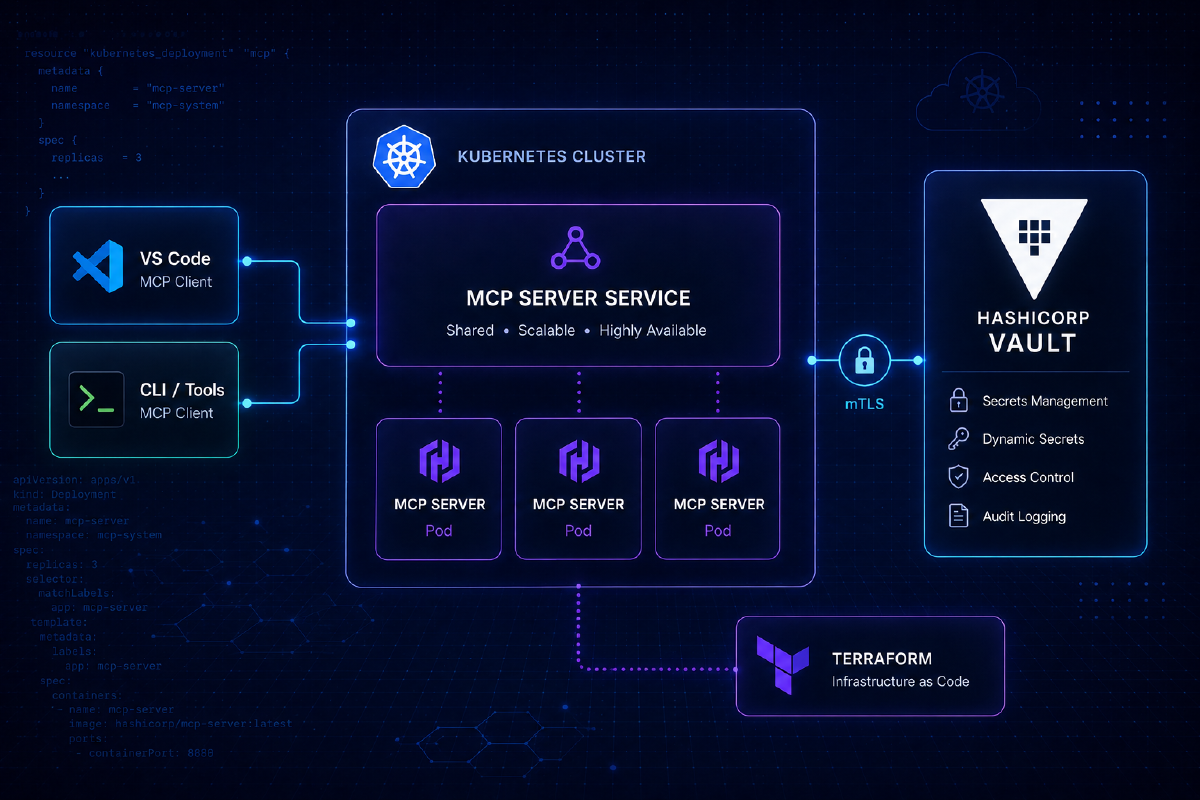
If you’ve been following along with my posts on configuring AI tooling for infrastructure work, most of the examples have involved running an MCP server locally. Running a process on your machine with credentials in your environment on a port that only you can reach gets you up and running quickly, which is great for getting started, but has limitations.
This post covers a Helm chart I’ve built to deploy HashiCorp’s Vault and Terraform MCP servers on Kubernetes, behind a shared gateway, so they’re accessible as a proper service rather than a per-laptop process. The chart lives at https://github.com/sammcgeown/hashicorp-mcp-servers-helm.
Why run MCP servers as a service?#
The consultant in me always says “it depends” - you might not need to. If you’re a solo developer using one client on one machine, a local process is the right answer and adding a Kubernetes deployment is unnecessary complexity. There are a few situations where it might be advantageous to deploy them as a service.
Multiple clients, multiple machines#
If you’re anything like me, you use different AI tools for different jobs. You might be using GitHub Copilot in VS Code on your work laptop, Claude Code in the terminal, and a Cursor session on a second machine. Each of those needs to reach an MCP server. Configuring and running three separate local server processes, each with their own copy of your credentials, is not ideal. A shared HTTPS endpoint means every client gets configured in about a minute, and there’s one place to update when anything changes.
Team access#
If you want your team to have the same Vault or Terraform MCP capabilities, the options are either “everyone installs and configures their own server” (error-prone, credential hygiene concern) or “run it centrally and point everyone at the same endpoint.” The second option has a higher initial setup cost and a lower ongoing cost.
Credentials in the right place#
A Vault token or Terraform Enterprise API token sitting in a .env file or shell environment on a developer laptop is a manageable risk, but it is still a risk. Kubernetes secrets, handled properly, give you a more auditable home for those credentials. They are not a magic solution, but they are a better answer than scattered local files.
Homelab scenarios#
If you’re running a self-hosted Vault instance on your home network, the natural home for its MCP server is also on that network, not managed per device. A single Kubernetes deployment at a stable internal address means any client you configure can reach it, including from a different machine or a phone if you’re inclined.
Consistent versions#
When a new MCP server version ships, a single helm upgrade rolls it out everywhere. Everyone hits the same version; there is one upgrade to test and one changelog to read.
Chart Architecture#
The repository contains three charts: vault-mcp and terraform-mcp as standalone charts, and hashicorp-mcp as a parent chart that deploys both as sub-charts behind a single domain with path-based routing.
%%{init: {'flowchart': {'curve': 'step'}}}%%
flowchart LR
    C["AI Client\n(VS Code / Claude Code / Cursor)"]

    subgraph k8s["Kubernetes — mcp-servers namespace"]
        GW["Gateway\nmcp.lab.definit.co.uk"]
        subgraph vault["vault-mcp"]
            VM["/vault/mcp"]
        end
        subgraph terraform["terraform-mcp"]
            TM["/terraform/mcp"]
        end
    end

    V["HashiCorp Vault"]
    T["Terraform Enterprise / HCP Terraform"]

    C -->|"HTTPS"| GW
    GW -->|"/vault"| VM
    GW -->|"/terraform"| TM
    VM --> V
    TM --> T
The parent chart handles the routing layer, so both servers live under a single hostname: e.g. mcp.lab.definit.co.uk/vault/mcp and mcp.lab.definit.co.uk/terraform/mcp. It supports both a standard Kubernetes Ingress resource and the Gateway API HTTPRoute, and can optionally deploy a Gateway resource for you or use an existing shared one.
These charts are not officially supported by HashiCorp.
The MCP servers themselves are HashiCorp’s work; the packaging is mine.
MCP servers are early-stage software
The Vault and Terraform MCP servers are under active development. The Vault MCP server in particular carries an explicit advisory against use with production environments containing sensitive data. Evaluate what level of access you grant these servers carefully, and review the upstream project notes before deploying anywhere that matters.
Example Deployment#
In this example deployment walkthrough I’ll have:
- Both MCP servers running in a
mcp-serversnamespace - A Gateway API
Gatewaydeployed by the chart, handling HTTPS traffic - Path-based routing so both servers are reachable under a single domain
- Endpoints at
https://mcp.lab.definit.co.uk/vault/mcpandhttps://mcp.lab.definit.co.uk/terraform/mcp
Prerequisites#
- Kubernetes 1.21 or later
- Helm 3
- A Gateway API implementation installed in your cluster (Cilium, Istio, Envoy Gateway, and others all work; the
gatewayClassNamein the values file needs to match whatever you’re running) - cert-manager with a
ClusterIssuerconfigured, if you want automatic TLS - A HashiCorp Vault instance and a token with the permissions you want to expose (if you enable the Vault MCP server)
- A Terraform Enterprise or HCP Terraform account and API token (if you enable the Terraform MCP server and wish to use them)
Security Context
Currently the pods are configured with runAsNonRoot: false - this is because the existing MCP server container images don’t support running as a non-root user. I have submitted PRs for the Terraform (356) and Vault (111) images to update them to run as non-root - when they have been merged I’ll update the chart.
Step 1: Add the Helm repository#
helm repo add hashicorp-mcp https://sammcgeown.github.io/hashicorp-mcp-servers-helm/
helm repo update
This makes the hashicorp-mcp, vault-mcp, and terraform-mcp charts available. We’re using the parent chart, which pulls in the others as dependencies automatically.
Step 2: Create the namespace and secrets#
The chart expects credentials as Kubernetes secrets rather than creating them from values, since you do not want sensitive tokens sitting in a Helm values file.
kubectl create namespace mcp-servers

# Vault token
kubectl create secret generic vault-token-secret \
  --from-literal=VAULT_TOKEN=your-vault-token \
  -n mcp-servers

# Terraform Enterprise / HCP Terraform token
kubectl create secret generic tfe-token-secret \
  --from-literal=TFE_TOKEN=your-tfe-token \
  -n mcp-servers
The secret names vault-token-secret and tfe-token-secret are what the chart expects by default. You can override them in the values file if you need to match existing secret names.
Step 3: Create your values file#
Rather than passing every option on the command line, write a values.yaml for your deployment. The configuration below enables the Gateway API HTTPRoute, deploys a Gateway resource as part of the release, and configures both MCP servers:
# Disable standard Ingress; use Gateway API HTTPRoute instead
ingress:
  enabled: false

httproute:
  enabled: true
  hostnames:
    - mcp.lab.definit.co.uk
  parentRefs:
    - name: hashicorp-mcp-gateway   # matches gateway.name below
      namespace: mcp-servers
  gateway:
    create: true                     # chart will deploy a Gateway resource
    name: hashicorp-mcp-gateway
    gatewayClassName: cilium         # replace with your Gateway API implementation
    listeners:
      - name: https
        protocol: HTTPS
        port: 443
        tls:
          mode: Terminate
          certificateRefs:
            - name: hashicorp-mcp-tls

# cert-manager Certificate resource
certificate:
  enabled: true
  name: hashicorp-mcp-tls
  commonName: mcp.lab.definit.co.uk
  issuer:
    name: letsencrypt-production
    kind: ClusterIssuer

# Vault MCP Server
vault-mcp:
  enabled: true
  replicaCount: 2
  vaultSecret:
    create: false
    name: vault-token-secret        # secret created in step 2
  env:
    VAULT_ADDR: "https://vault.lab.definit.co.uk"
    TRANSPORT_MODE: "streamable-http"
    MCP_ENDPOINT: "/mcp"

# Terraform MCP Server
terraform-mcp:
  enabled: true
  replicaCount: 2
  tfeSecret:
    create: false
    name: tfe-token-secret          # secret created in step 2
  env:
    TFE_ADDRESS: "https://app.terraform.io"
    TRANSPORT_MODE: "streamable-http"
    MCP_ENDPOINT: "/mcp"
The gatewayClassName needs to match whatever Gateway API implementation you’re running. In my lab I’m using Cilium; Istio, Kong, and Envoy Gateway are all valid alternatives. The tls block on the listener references the cert-manager Certificate created by the chart, so if you’re handling TLS differently (externally managed certificate, a different issuer name), adjust that section accordingly.
Deploying only one server
Set vault-mcp.enabled: false or terraform-mcp.enabled: false to skip a server entirely. The chart omits the disabled server’s deployment and removes it from the HTTPRoute path rules.
Step 4: Install#
helm install hashicorp-mcp hashicorp-mcp/hashicorp-mcp \
  -n mcp-servers \
  --create-namespace \
  -f values.yaml
The chart creates the Gateway resource, the HTTPRoute, the cert-manager Certificate, and deploys both server pods. Certificate issuance takes a moment depending on your ACME provider; the pods come up faster than that.
Step 5: Verify#
# Check pods are running
kubectl get pods -n mcp-servers

# Check the Gateway has been assigned an address
kubectl get gateway -n mcp-servers

# Run the chart's built-in connectivity tests
helm test hashicorp-mcp -n mcp-servers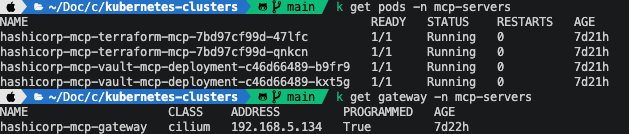
Once the pods are running and the Gateway has an external address, both endpoints should be reachable. You can do a quick sanity check with curl:
curl https://mcp.lab.definit.co.uk/vault/mcp
curl https://mcp.lab.definit.co.uk/terraform/mcp
The MCP servers respond to HTTP requests on those paths; a connection error here usually means DNS hasn’t propagated yet, the certificate is still being issued, or the Gateway address hasn’t been assigned.
Connecting your tools#
With the servers running, pointing an MCP client at the HTTP endpoints is straightforward. In VS Code, open your settings.json and add:
{
  "github.copilot.chat.mcp.servers": {
    "vault-mcp": {
      "type": "http",
      "url": "https://mcp.lab.definit.co.uk/vault/mcp"
    },
    "terraform-mcp": {
      "type": "http",
      "url": "https://mcp.lab.definit.co.uk/terraform/mcp"
    }
  }
}
For Claude Code or any other MCP-compatible client that supports the HTTP transport, the configuration is the same URLs. The shared endpoint means you can copy-paste the same configuration to any machine, and adding a new client takes seconds rather than setting up another local server process.
Upgrades#
When a new version of either MCP server is released, update the image tag in your values file and run:
helm upgrade hashicorp-mcp hashicorp-mcp/hashicorp-mcp \
  -n mcp-servers \
  -f values.yaml
Everyone using the shared endpoint gets the upgrade without any per-client action.
Closing thoughts#
The setup here is more involved than running a local MCP server process, so if you are the only person using these tools on one machine, you do not need this. The chart earns its complexity when you have multiple clients to configure, a team to provision for, or a homelab where a stable internal service address is more useful than a per-device process.
The Gateway API path in particular requires a compatible implementation already installed in your cluster. If you are not already running one, the standard Ingress configuration in the chart is a simpler starting point: set ingress.enabled: true, provide your ingressClassName and hostname, and skip the httproute and gateway sections entirely.
The source is at https://github.com/sammcgeown/hashicorp-mcp-servers-helm. Issues and pull requests welcome.