Written by Sam McGeown
on 18/11/2016
Recently I’ve been working on some ideas in my lab to leverage the AWS endpoint on vRealize Automation. One of the things I needed to get working was getting Software Components working on my AWS deployed instances.
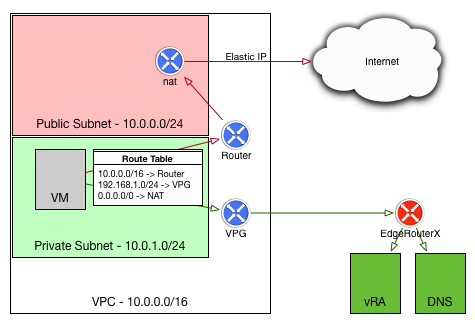
The diagram to the right shows my end-stage network - the instance deployed by vRA into AWS should be in a private subnet in my VPC, and should use my local lab DNS server and be able to access my vRA instance. This allows me to make use of the vRA guest agent for software components on the deployed VMs. I also wanted to have the deployed VMs use their local NAT gateway for internet traffic, rather than paying for the data over my VPN connection.
Written by Sam McGeown
on 28/7/2016Although it’s fairly limited, you can add AWS as an endpoint for vRealize Automation 7 and consume EC2 AMIs as part of a blueprint. You can even add the deployed instances to an existing Elastic Load Balancer at deploy time. In this post I’ll run through the basics to get up and running and deploy your first highly available (multiple Availability Zone, load balanced) blueprint.
There are some obvious pre-requisites for attaching an AWS endpoint - for example, you need to have a VPC configured. There are plenty of resources out there for creating a VPC, so I won’t extend this post by replicating them. This is what I’m using:

Written by Sam McGeown
on 19/4/2016Big thanks to
I’ve been trying to configure vCloud Air as a vCloud Director host in vRealize Orchestrator in order to create some custom resource actions for Day 2 operations in vRealize Automation. What I found was that there’s *very* little information out there on how to do this, and I ended up writing my own custom resource mapping for the virtual machines to VCAC:VirtualMachine objects - at least that way I could add my resource action. But this still didn’t expose the vCloud Director functionality for those machines. To do this I needed vCloud Air added as a vCloud Director host.
Written by Sam McGeown
on 10/11/2015I use mind maps quite a lot for study, I find the visual representation of info makes it a lot easier for me to remember! Below is a mind map I created for learning the roles in vRealize Automation, which I used during my presentation for #vBrownBag on VCP6-CMA objective 2.
You can download a PDF version here: vRealize Automation Roles Mind Map
Written by Sam McGeown
on 29/9/2015
As a vExpert, I am blessed to get 1000 CPU hours access to Ravello’s awesome platform and recently I’ve been playing with the AutoLab deployments tailored for Ravello.

If you’re unfamiliar with Ravello’s offering (where have you been?!) then it’s basically a custom hypervisor (HVX) running on either AWS or Google Cloud that allows you to run nested environments on those platforms. I did say it’s awesome.
Written by Sam McGeown
on 19/8/2015![]()
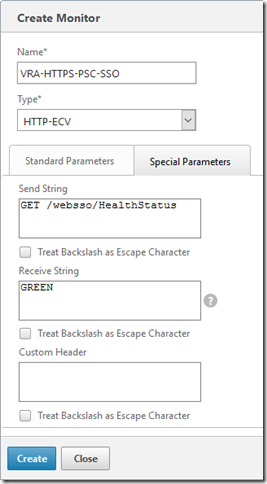
Enter a name for the monitor, and leave the other parameters the same. Select the “Special Parameters” tab and configure the send string to the URL to monitor - e.g for the PSC SSO it’s going to be:
For the receive string, enter the expected response (“GREEN”). Click Create.
![]()
Assign the monitor to the PSC Services (or Service Groups) configured for PSC by opening the Configuration > Traffic Management > Load Balancing > Services page and selecting the PSC service for HTTPS/443 and clicking Edit.
Written by Sam McGeown
on 14/8/2015
Now that the prerequisites for the IaaS layer have been completed, it’s time to move on to the actual installation of the IaaS components, starting with the database. We then move onto the first Web server, which also imports the ModelManagerData configuration to the database, populating the database with all of the info the IaaS layer needs out of the box. We then install the second Web server before moving on to the active Manager server. The second Manager server is passive and the service should be disabled - I’ll cover installing DEM Orchestrators, Workers and the vSphere Agents in the next article.
Written by Sam McGeown
on 14/8/2015One of the trickiest parts of deploying vRealize Automation is the IaaS layer - people sometimes look at me like I’m a crazy person when I say that, normally because they’ve deployed a PoC or small deployment with just a single IaaS server. Add in 5 more servers, some load balancers, certificates, a distributed setup and MSDTC to the mix and you have a huge potential for pain!
Written by Sam McGeown
on 24/7/2015
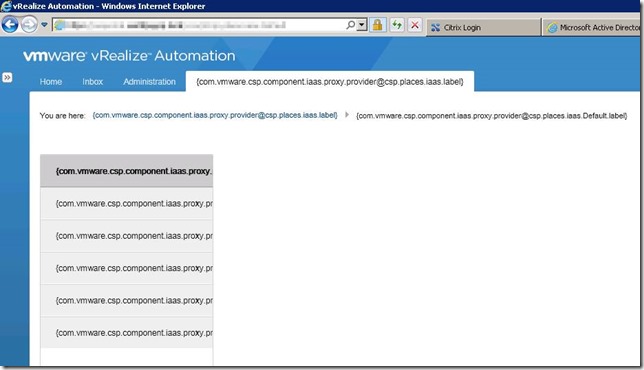
Having just completed a particularly problem-prone distributed IaaS install, this was almost the straw that broke the camel’s back. Logging into vRealize Automation for the first time as an Infrastructure Admin displayed the infrastructure tab and all menu labels as big ugly references, and no functionality:
{com.cmware.cap.component.iaas.proxy.provider@csp.places.iaas.label }
![]()
Rebooting the IaaS web servers restored the functionality of the IaaS layer but still did not fix the label issue, it took a further reboot of both vRealize Automation appliances, then the IaaS web servers to finally view the correct labels.
Written by Sam McGeown
on 8/7/2015The recommendations for the vRealize Appliance have changed with 6.2, the published reference architecture now does not recommend using an external Postgres database (either vPostgres appliance, a 3rd party Postgres deployment or using a third vRealize Appliance as a stand-alone database installation). Instead the recommended layout is shown in the diagram below. One instance of postgres on the primary node becomes an active instance, replicating to the second node which is passive. In front of these a load balancer or DNS entry points to the active node only. Fail-over is still a manual task, but it does provide better protection than a single instance.